Start here
Quick start: your first event
From nothing to a working camera and live wall in about ten minutes. You can do the whole thing on your phone, and you can start on the free Spark plan and upgrade later.
- Sign in with your emailGo to aine.cam/login, type your email and tap Send sign-in link. Open the email from AINE on the same phone or computer and tap Sign in. There is no password. More about signing in.
- Create the eventTap New event, pick the occasion (Wedding, Corporate, Community or Party), then answer three questions: the name, the date and time, and how many guests. Step-by-step guide.
- Choose a planThe guest count picks the plan for you. Spark is free for up to 10 guests. For a paid plan you go straight to secure Stripe checkout; the event is created first, so nothing is lost if you stop halfway. Compare plans.
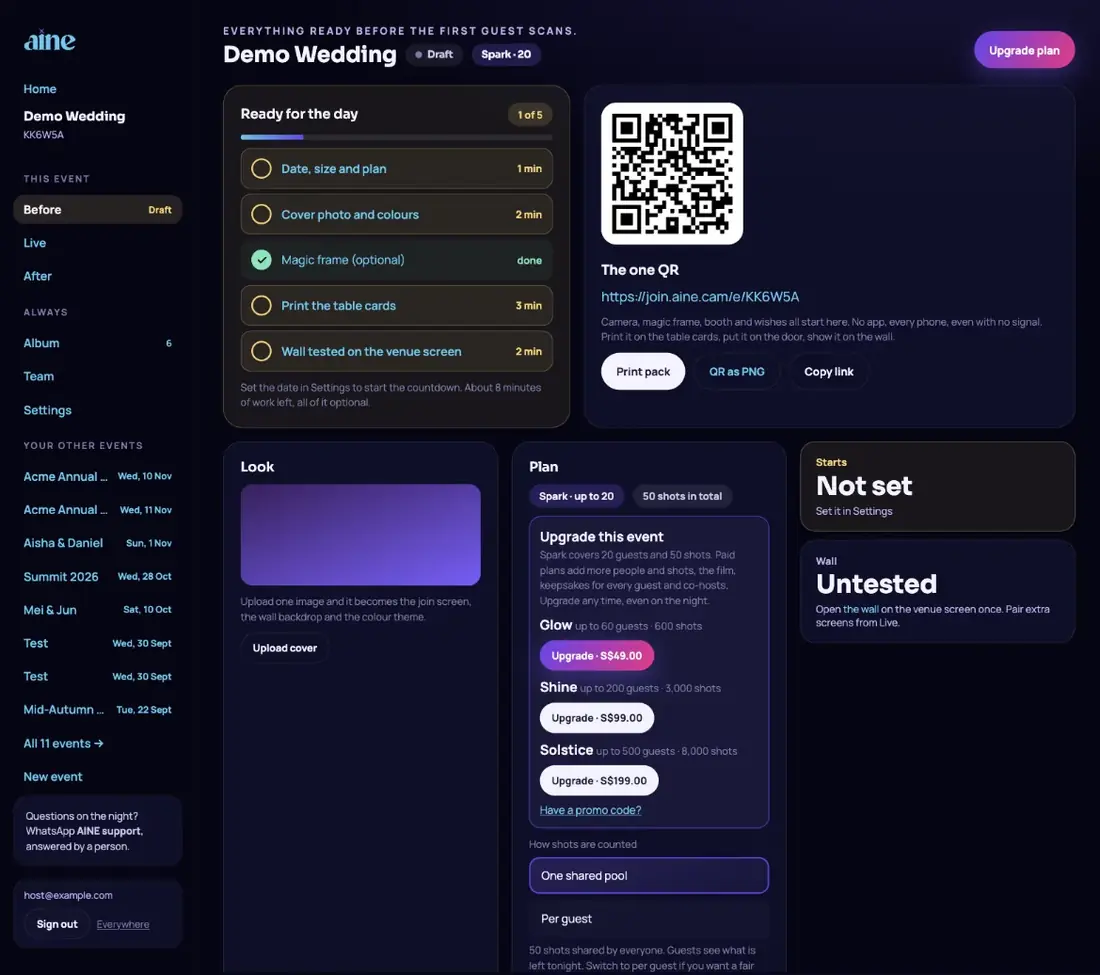
- Make it yours (optional)On the Before tab upload a cover photo. It becomes the guests' join screen, the wall backdrop and your colour theme. Add a monogram for the magic frame if you like. Cover and magic frame.
- Test it like a guestScan The one QR on the Before tab with your own phone and take a photo. It lands in your Album in seconds. If review is on (the default for weddings, corporate and community events) it waits under Pending until you approve it, or until auto-approve releases it while a wall is open.
- Open the wall on a screenOn the Live tab tap Open wall, or type
aine.cam/live/YOURCODEinto the browser of the venue laptop or smart TV. Wall guide. - Print the QRTap Print pack for table cards, a door sign, a night-of checklist and MC scripts. Print pack guide.
- After the night, end the eventOn the After tab tap End event. The camera closes, guests who left an email receive their keepsake, and on Shine and Solstice the highlight film is cut. After the event.
Your test shots count
Every photo or video uses one shot from the event's pool, including your own tests, and deleting a photo never gives the shot back. Take one or two test shots, not twenty.
What to do next#
Event-day checklistEverything to check before doors open.
What to tell guestsMC lines and signage that get people shooting.
Get help on the nightCo-hosts, volunteer codes and your photographer.
Still stuck? A person answers every email, usually within one working day.
Email support@aine.cam