The live wall and screens
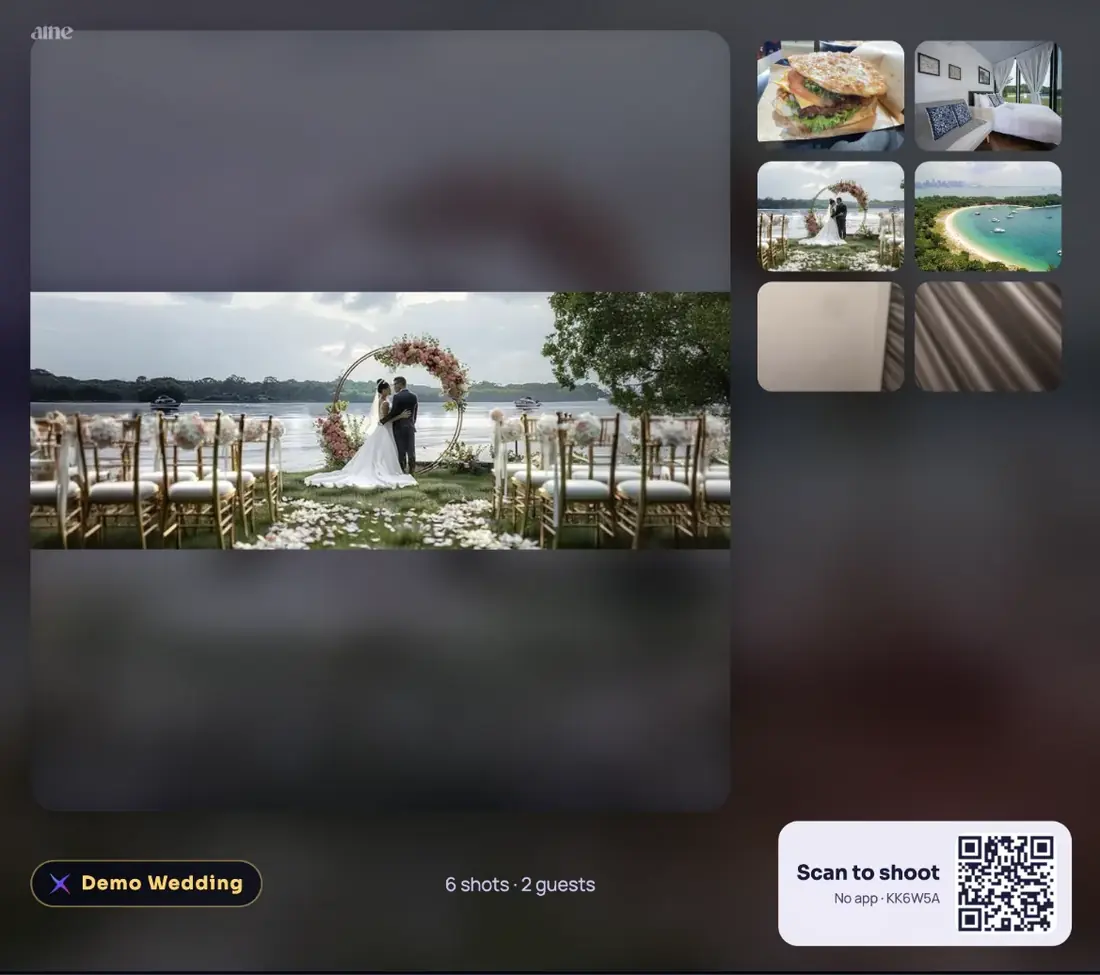
The wall is a web page that plays your guests' approved photos, videos and wishes on any screen with a browser. New shots appear within seconds with a Just landed tag.
Open the wall#
- Connect a computer or smart TVA laptop on HDMI to the projector is the most reliable. Any screen with a modern browser works.
- Open your wall linkGo to
aine.cam/live/CODE, or tap Open wall on the Live tab. You do not need to be signed in on the wall device. - Go full screenPress F11 on Windows, or Control + Command + F on a Mac.
- Keep it awakeTurn off sleep and screen savers, plug in the power, and use a wired or strong Wi-Fi connection.
Auto-approval of shots runs while a wall is open. If you set "auto-approve after 2 minutes", have the wall (or any wall) open during the event.
What appears on the wall#
- Only approved shots, and never shots from guests who chose Not on the wall, please.
- Photos and videos (videos play up to 35 seconds), with approved wishes mixed in.
- A footer with your event badge, the count of shots and guests, and a Scan to shoot QR so late arrivals can join.
Layouts#
| Layout | Best for |
|---|---|
| Single | One photo at a time, full focus. Intimate rooms. |
| Spotlight | One large photo with recent shots beside it. Weddings; every shot is seen. A wish every fifth slide. |
| Duo, Trio | Two or three at once. Parties with lots of shots. |
| Grid, Mosaic | Many at once. Big corporate and community events, foyers. |
Set the slide interval (2 to 60 seconds), backdrop (blurred photo, Galaxy, pure black or your cover), Smart Display and glass opacity in Settings › The wall. Change the layout live from the Live tab.
Door signage#
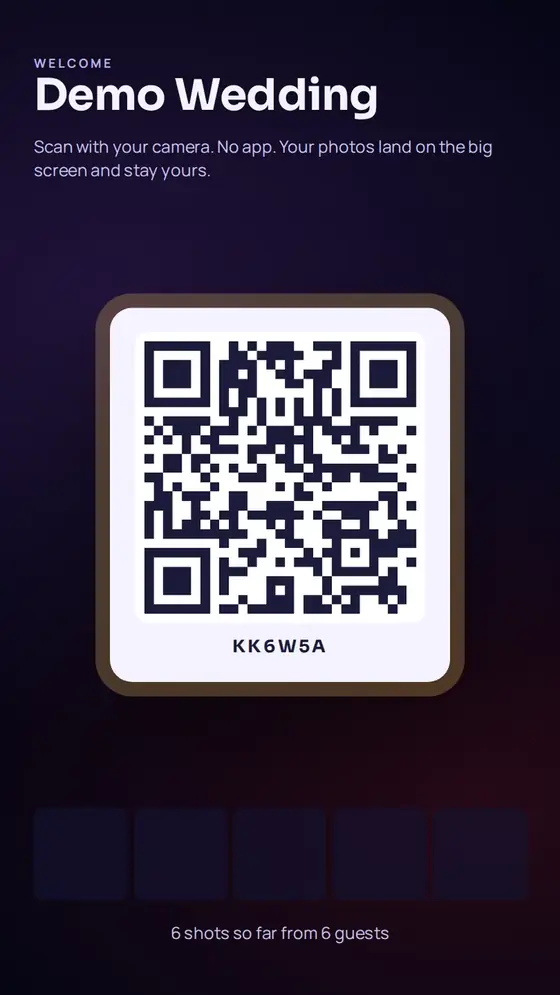
Open aine.cam/live/CODE?portrait=1 (or tap Door signage) on a vertical screen at the entrance. It shows a large QR, your event name and a line of recent shots.
Extra screens#
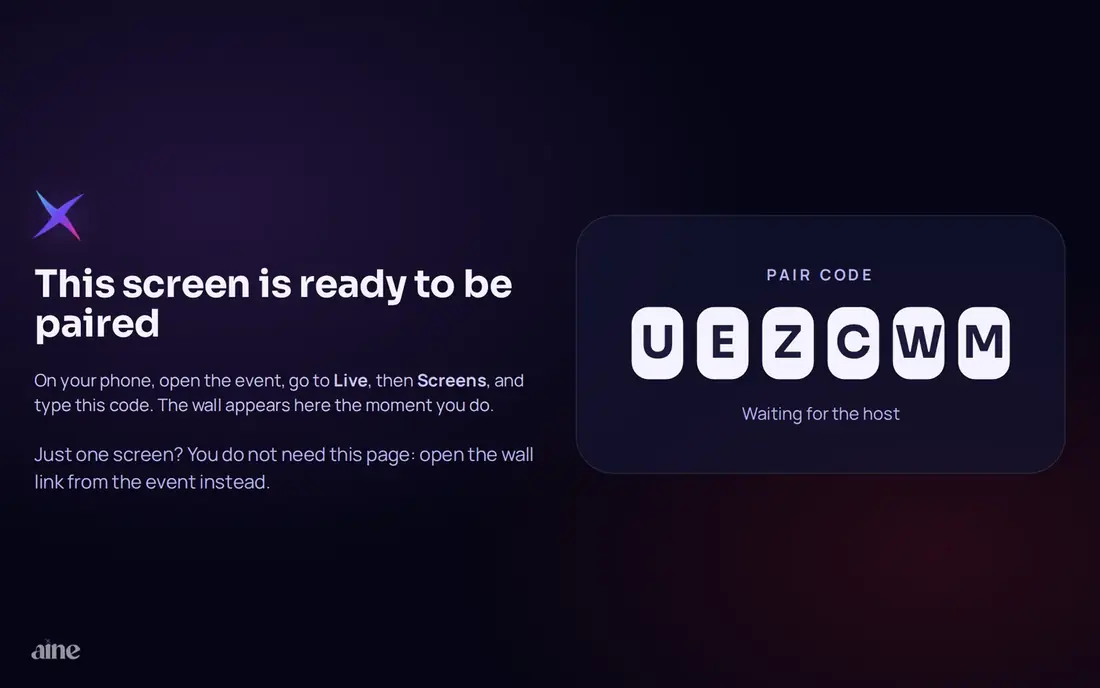
Open aine.cam/wall on the extra screen and type its six-letter code into Live › Screens on your phone. The screen remembers the pairing. Each screen can follow the main layout or keep its own. See Screens.
The finale#
The Finale cue shows a thank-you card with the night's totals, reminding guests their photos are coming to them. Fire it near the end, or let your run sheet do it.
Venue checklist for the wall#
- Test the wall at the venue before the day, on the actual screen. Opening it from the event ticks Wall tested.
- Check the venue Wi-Fi works for the wall device, or bring a hotspot.
- Close other apps and notifications on the laptop.
- Have your phone signed in to the Live tab to control the wall.
- Keep the wall link bookmarked in case the browser is closed.
Anyone with the wall link can view it, so treat the link like the QR code: share it with your venue and AV team, not publicly online.
Still stuck? A person answers every email, usually within one working day.
Email support@aine.cam