Create an event
Creating an event takes three short steps on one page. A live phone preview on the right shows what your guests will see as you go.
Step 1: choose the occasion#
Tap New event on Host home. Pick one of four occasions. The occasion only sets sensible starting defaults for the camera, the wall and the night. Everything stays editable later.
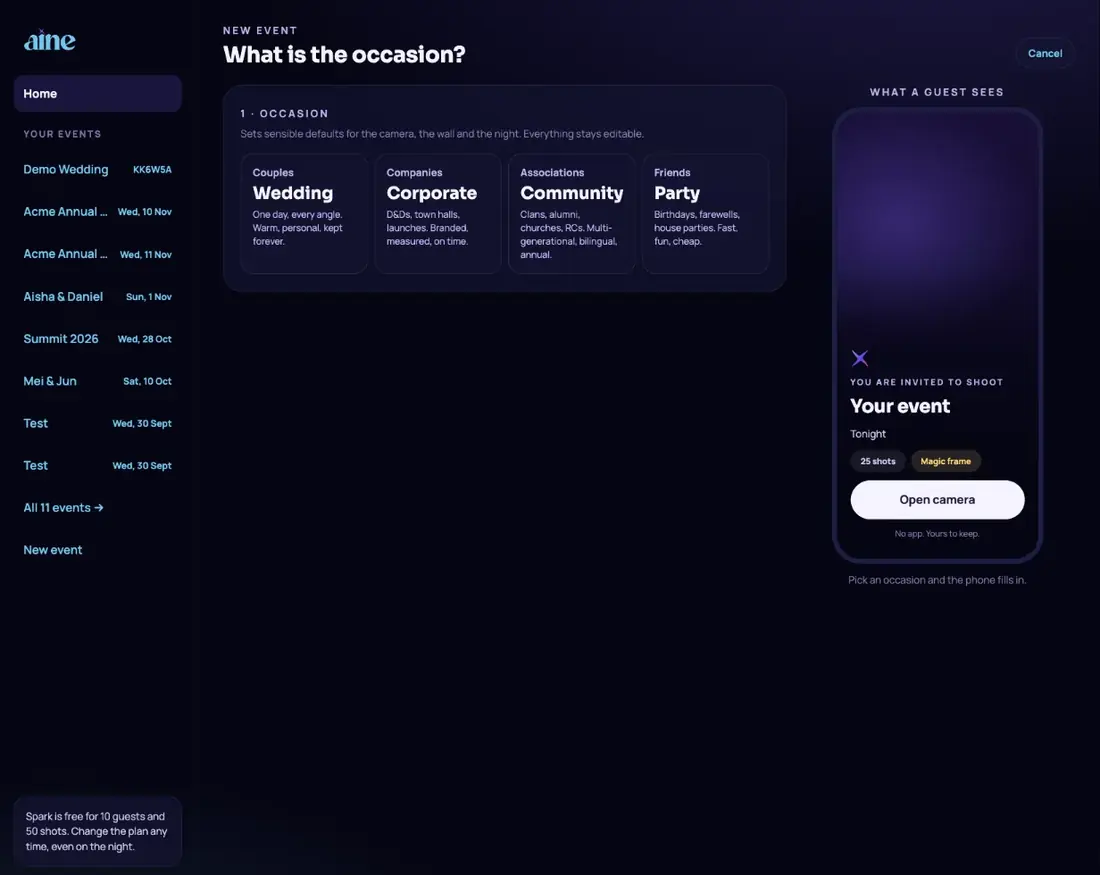
| Default | Wedding | Corporate | Community | Party |
|---|---|---|---|---|
| Review photos before the wall | On, auto-approve after 2 min | On, no auto-approve | On, auto-approve after 2 min | Off |
| Magic frame | On | On | On | Off |
| Uploads from camera roll | On | Off | On | On |
| Join-screen languages | English | English | English, 中文, Bahasa Melayu, தமிழ் | English |
| Longest video | 30 s | 15 s | 30 s | 15 s |
| Wall layout | Spotlight | Grid | Mosaic | Duo |
| Suggested plan | Shine | Solstice | Solstice | Spark |
Step 2: three questions#
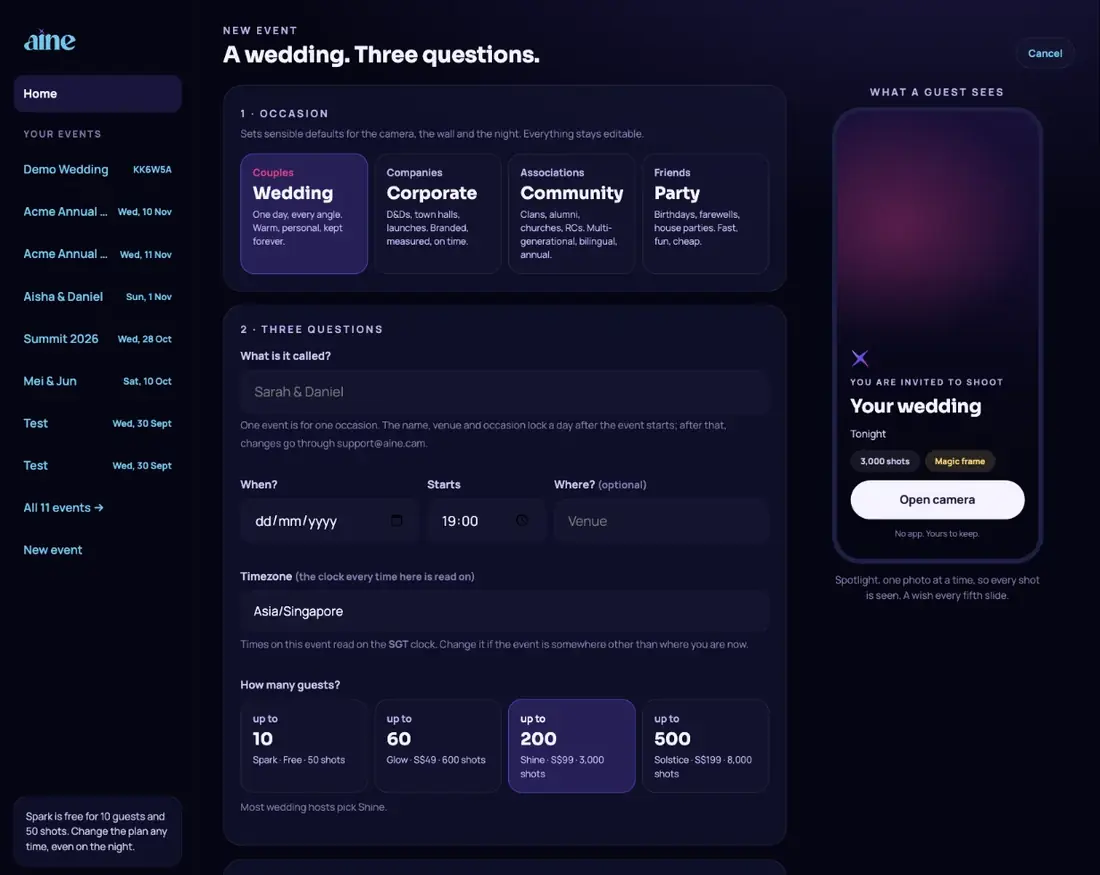
- What is it called?Up to 80 characters, for example Sarah & Daniel or Acme Annual Dinner 2026. This name appears on the join screen, the wall, table cards and the film.
- When, starts and wherePick the date and start time (default 7:00 pm) and, optionally, the venue. The date drives the countdown, the phase of the event and the suggested run sheet. You can leave the date empty and set it later.
- TimezoneDefaults to your device's timezone. Change it if the event is somewhere else. Every time on the event is read on the venue's clock.
- How many guests?Tap the size that fits your room. Each option shows the plan, the price and the shot pool. The plan is simply the smallest one that fits.
The name, venue and occasion lock about a day after the event starts. After that, changes go through support@aine.cam. Check spelling before the day. How the lock works.
Step 3: the defaults#
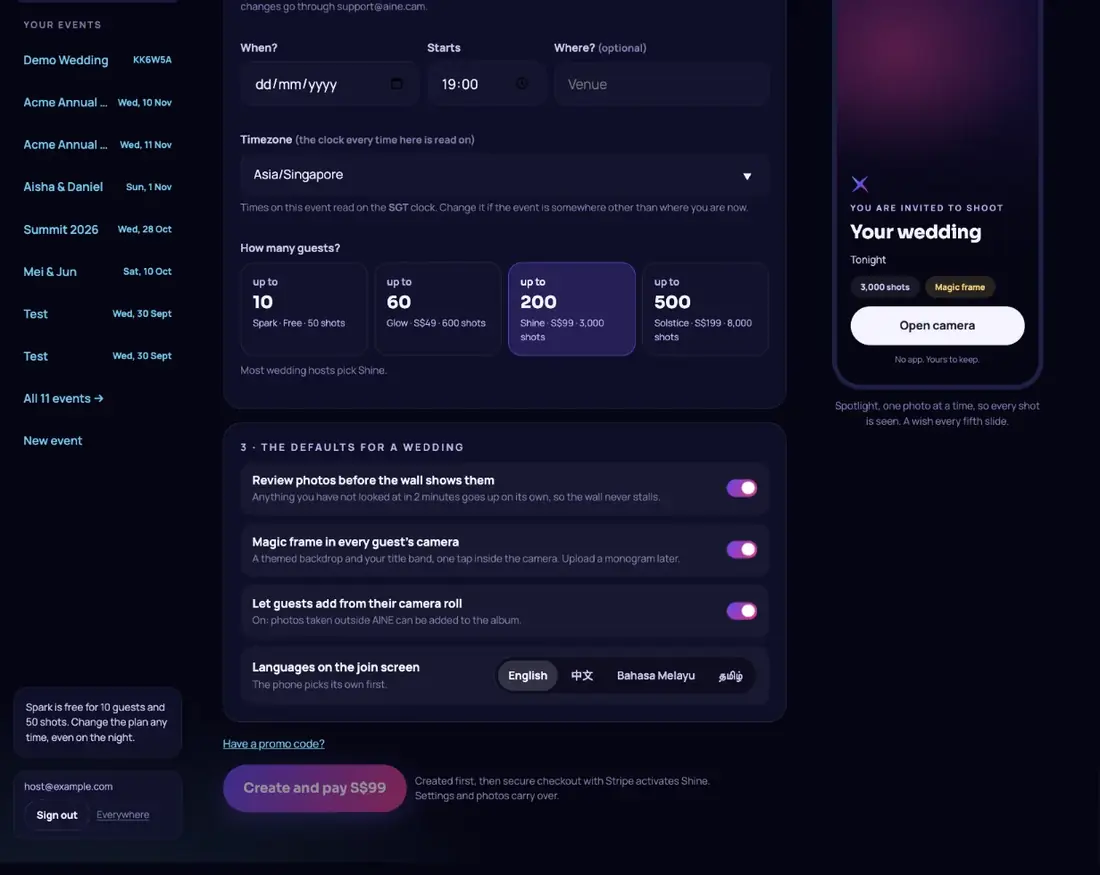
- Review photos before the wall shows them. When on with auto-approve, anything you have not looked at in a few minutes goes up on its own (while a wall is open) so the wall never stalls.
- Magic frame in every guest's camera. A themed backdrop and your title band, one tap inside the camera. You can upload a monogram later.
- Let guests add from their camera roll. Photos taken outside AINE can be added to the album. Each upload uses a shot.
- Languages on the join screen. English, 中文, Bahasa Melayu and தமிழ். At least one must stay on. Each guest's phone starts in its own language when you offer it.
Promo, referral and partner codes#
On a paid plan tap Have a promo code? and type the code. It is checked as you type. If you arrived through a friend's referral link or a partner's link, the code is filled in for you and the discount is shown. One code per order; codes do not stack. Referral codes apply to your first paid plan only.
Create and pay#
- On the free plan the button reads Create event.
- On a paid plan it reads Create and pay S$99 (or the price in your currency). If a code covers the whole price it reads Create with code.
Every event is created on Spark first, then you go to secure Stripe checkout. The paid plan activates as soon as payment is confirmed, usually within a few seconds. If you close checkout, your event still exists on Spark; upgrade later from the Plan card with no loss of settings or photos.
Prices show in Singapore dollars in Singapore and in US dollars everywhere else. Your event keeps the currency it was created in for later upgrades and top-ups. See Currency.
After you create#
You land on the Before tab with the message Your event exists. Guests can already scan and shoot. The rest is polish. Your QR code works immediately. Continue with Before: get ready.
You can have up to three active free (Spark) events at a time. Ending one frees a slot.
Still stuck? A person answers every email, usually within one working day.
Email support@aine.cam