What guests see
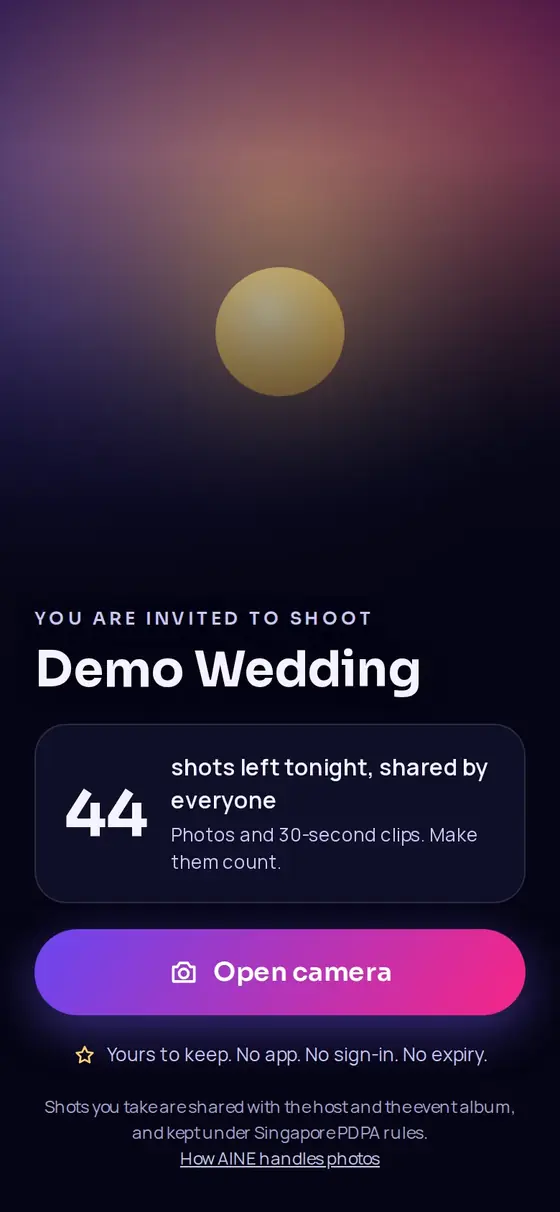
Guests scan your QR code and the camera opens in their browser. No app, no account, no password. This page walks through every screen so you can answer any question on the night.
Joining#
- Scan the QRWith the phone's own camera app, or open
join.aine.cam/e/CODE. The screen shows your cover, You are invited to shoot, the event name, the venue and time on the venue's clock. - See the film counterA card shows how many shots are available: 44 shots left tonight, shared by everyone for a shared pool, or 20 shots on your film for a per-guest allowance, and the longest video length.
- Tap Open cameraThat is it. Guests do not type a name, email or password to start. The consent line under the button explains that shots are shared with the host and the album, with a link to How AINE handles photos.
If you offer more than one language, language buttons appear at the top. The phone starts in its own language when you offer it. The phone remembers the guest, so coming back later on the same phone and browser goes straight to the camera.
When the guest cap for your plan is reached, new guests cannot join. Upgrade from the Plan card, even mid-event, and they can join straight away.
The camera#
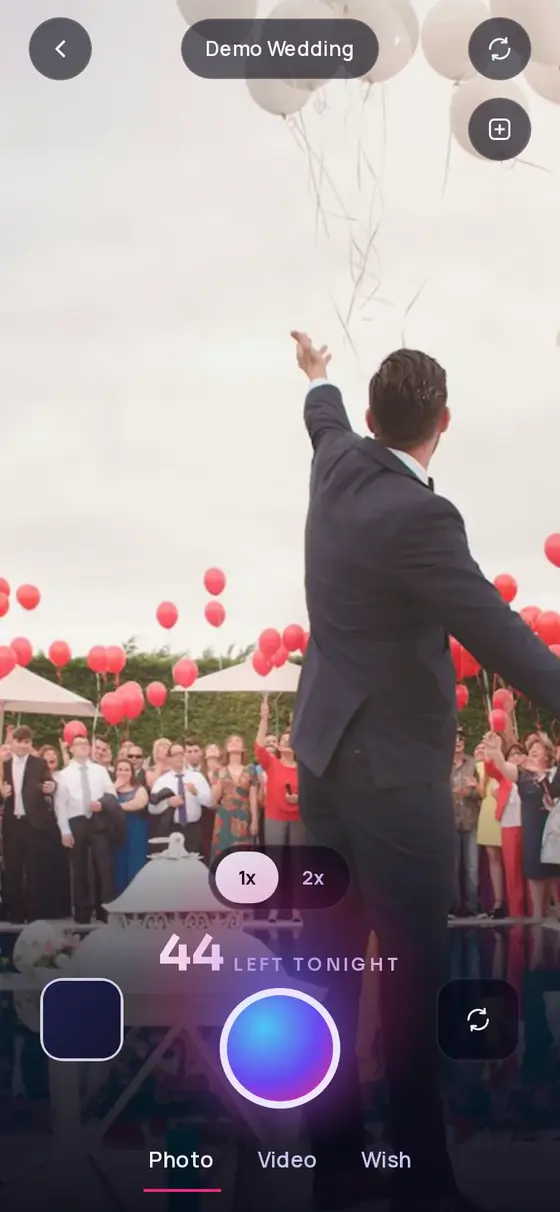
- Photo, Video and Wish tabs along the bottom. Video appears when the browser can record; Wish appears when wishes are on.
- The shot counter above the shutter reads 44 LEFT TONIGHT for a shared pool or 12 LEFT for a personal allowance.
- Zoom buttons (0.5x, 1x, 3x on phones that support it, otherwise 1x and 2x), flip camera, and torch on phones that let the browser use it.
- The roll thumbnail opens Your shots.
- The magic frame sparkle button, if you turned it on.
- The + button adds photos and videos from the camera roll, if you allow it.
Photos#
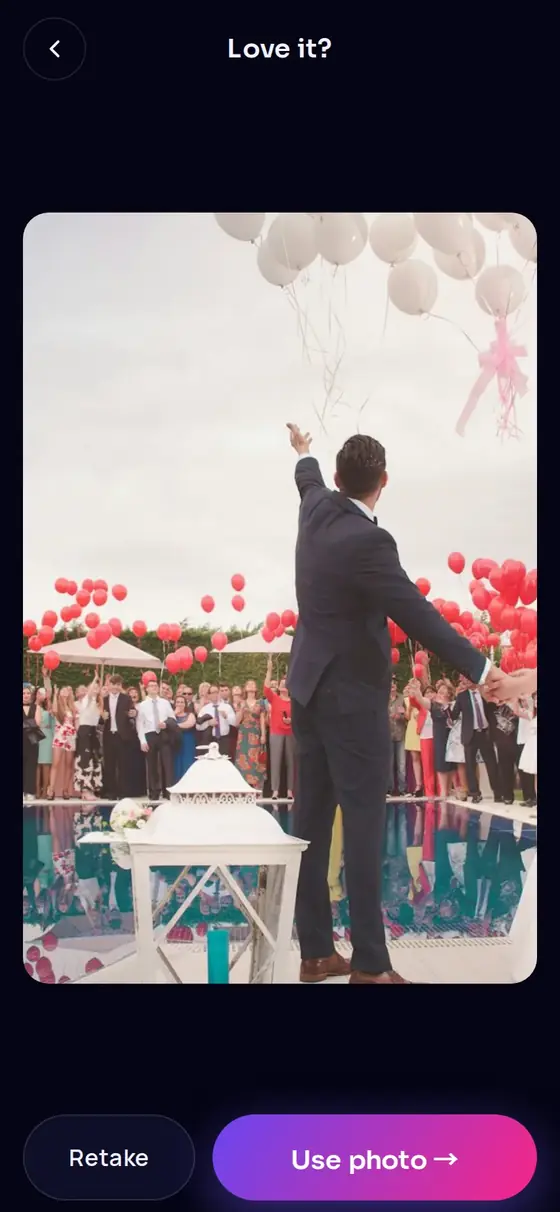
After each photo the guest sees Love it? with Retake and Use photo →. Retaking at this point is free: the shot is thrown away before it is counted. Photos are saved as high-quality JPEGs about 1600 pixels on the long side, a size that stays sharp on the wall and uploads fast on busy venue Wi-Fi.
Video#
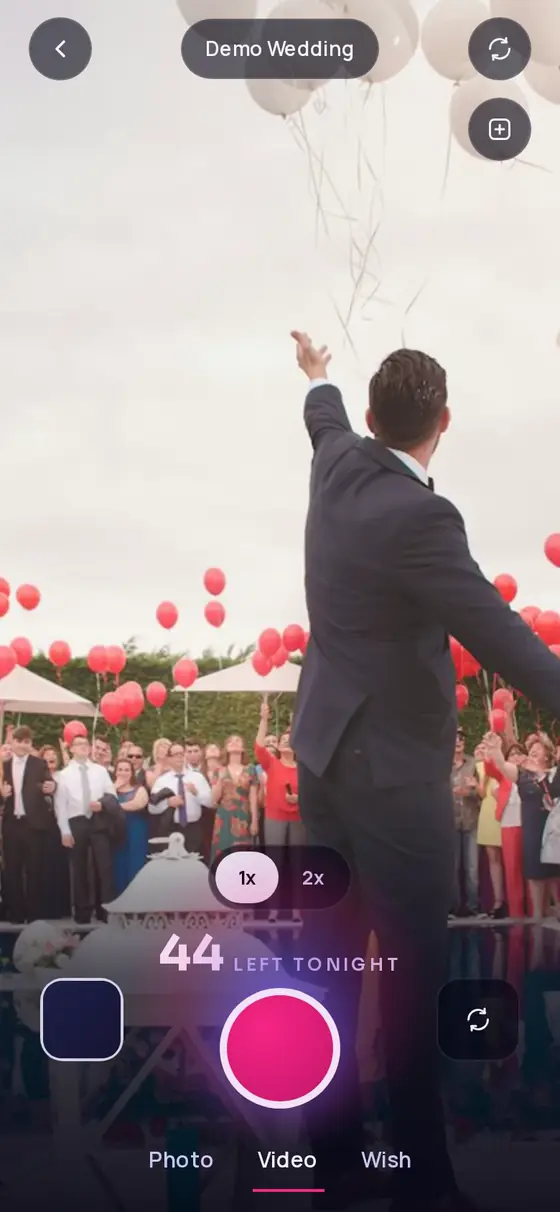
Video clips count as one shot each. A REC 12s / 30s pill shows while recording, and recording stops at your event's limit (30 seconds on Spark and Glow, up to 60 on Shine and Solstice). The browser asks for the microphone only when the guest switches to Video. The preview is muted.
Magic frame#
With the magic frame on, the preview after a photo shows the backdrops you offer: Backdrop, chosen by the host. Tap to try another. The guest taps Keep it and the framed photo goes to the wall and their keepsake. Design your frame.
Uploads from the camera roll#
If you allow it, guests can add photos and videos they already took. Each file uses one shot. Photos are resized like camera shots; videos over 80 MB are skipped with a message.
Your shots (the camera roll)#
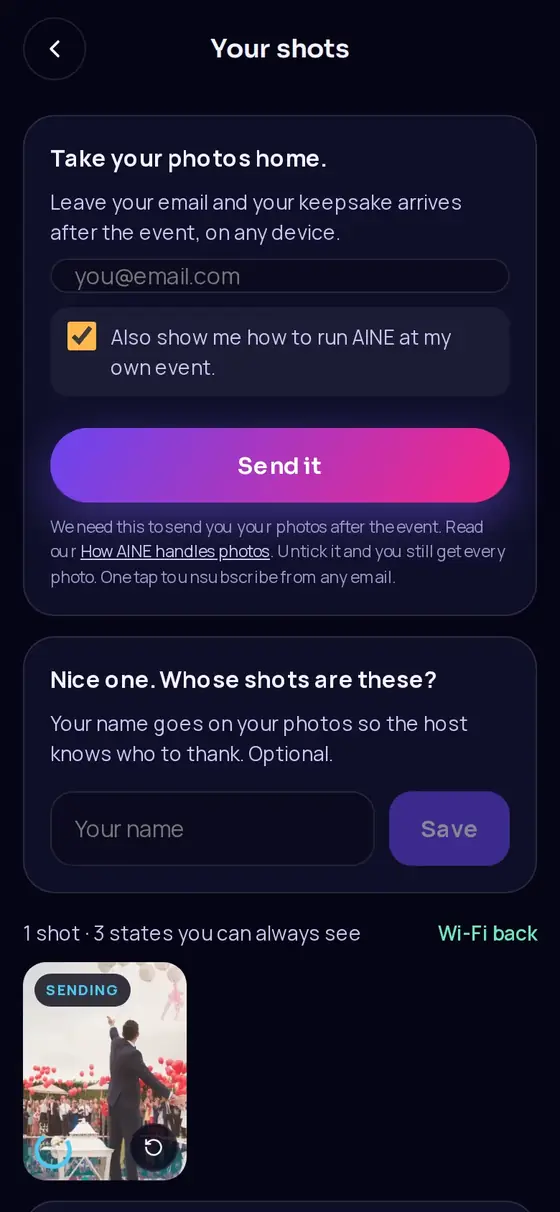
Tapping the thumbnail opens Your shots. From the top:
- Take your photos home. An email box to receive the keepsake after the event. More below.
- Whose shots are these? An optional name so you know who to thank.
- Every shot with its status: LIVE in the album and on the wall, SENDING uploading now, ON PHONE saved and waiting for signal, and IN REVIEW waiting for your approval.
- Not on the wall, please. A switch for shy guests. Their shots still reach you and their keepsake; the big screen skips them.
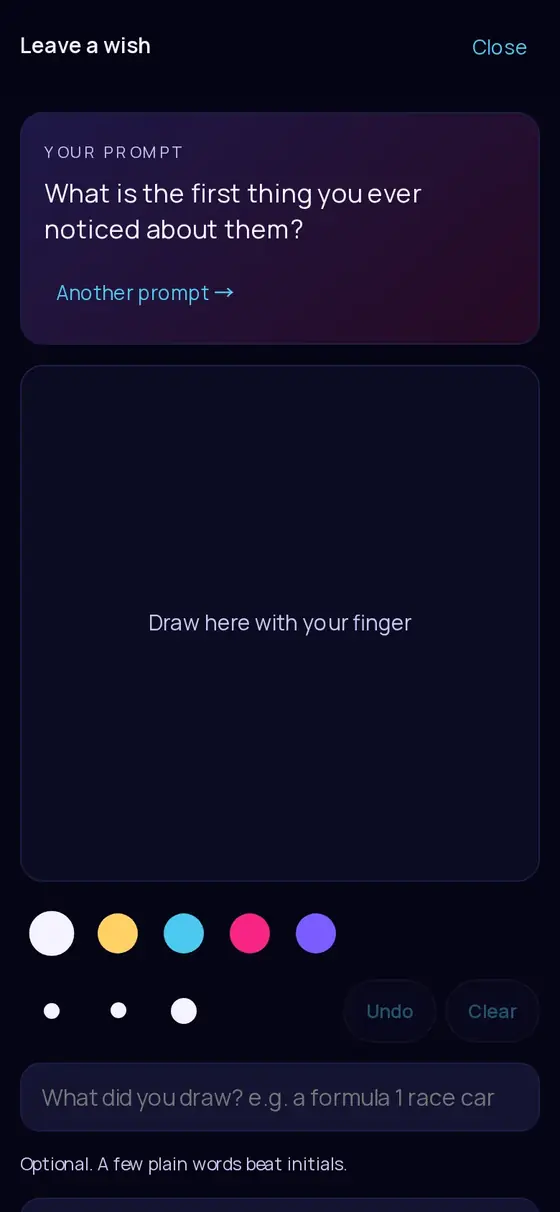
- Leave them a wish. Opens the wish studio. Wishes.
- Not my phone. For borrowed phones. Hands the phone back clean once the guest's shots have sent and they have left an email.
Taking a shot back#
Each tile has Take this one back. A shot still on the phone can always be removed and the shot is returned. A shot already sent can be taken back within 15 minutes, unless you pinned it. A guest's first 3 take-backs return the shot; after that the photo is still removed but the shot stays spent.
Keepsakes: getting photos after the event#
Guests who leave an email receive a personal keepsake gallery after you end the event: their own approved shots, the highlight film on Shine and Solstice, and any replies you wrote to their wishes. They can download everything or share it.
AINE asks for an email at the natural moments: at the top of Your shots, after their third shot (Want these after tonight?), and when shots run out. It is never required to shoot. A box ticked by default, Also show me how to run AINE at my own event, is separate from delivery: unticking it still gets them every photo.
Without an email, a guest's only way back to their photos is the same phone and browser. Keepsakes are delivered by email today. Mention it in the MC script and on table cards. Ready-made scripts.
No signal? No problem#
Every shot is saved on the phone first and uploaded in the background. An amber pill says Saving on your phone. 3 will send when connected. and a blue one says Sending 3…. Once the camera has opened once, guests can keep shooting with no signal at all.
- On iPhone, uploads only happen while the page is open. Ask guests to reopen the page when they have signal and not to close the tab while shots show ON PHONE.
- On weak or captive venue Wi-Fi where the phone thinks it is online but uploads keep failing, a shot is retried for about three minutes and then skipped with a message. Good Wi-Fi, or switching to mobile data, avoids this.
- Clearing browser data or using a private window can lose shots that have not been sent yet.
When the event is paused, full or ended#
| Situation | What guests see | Their shots |
|---|---|---|
| You paused the event | The host has paused things for a moment. It clears by itself within about 20 seconds of you resuming. | Safe. The shutter is blocked and new shots, wishes and uploads are refused until you resume. |
| The shot pool is used up | The room has used its film. Optionally a button to ask you or buy more, and a link to leave a wish instead. | Everything already taken is safe in the album. |
| Their personal allowance is used | That is your film. | Safe. |
| The guest cap is reached | This event is full. at the join screen. | They cannot join until you upgrade. |
| You ended the event | The host has closed the album. | Shots already sent are safe. Shots still waiting on a phone are not added. |
Give guests a few minutes on good Wi-Fi for queued shots to send before you tap End event. Use Pause, not End, for breaks.
Supported phones and browsers#
- iPhone with Safari, and Android with Chrome, are the recommended setups. Videos record as MP4 where the browser supports it, otherwise WebM.
- Scan with the phone's own camera app. Scanners built into other apps (social media or chat apps) open their own in-app browsers, which can block the camera or forget queued shots. If that happens, open the link in Safari or Chrome.
- If the browser blocked the camera, guests see Camera access needed. Allow the camera for the page in browser settings. Video also needs the microphone.
Still stuck? A person answers every email, usually within one working day.
Email support@aine.cam