Before: get ready
The Before tab is your setup desk. Everything here is optional polish; your QR code works from the moment the event exists.
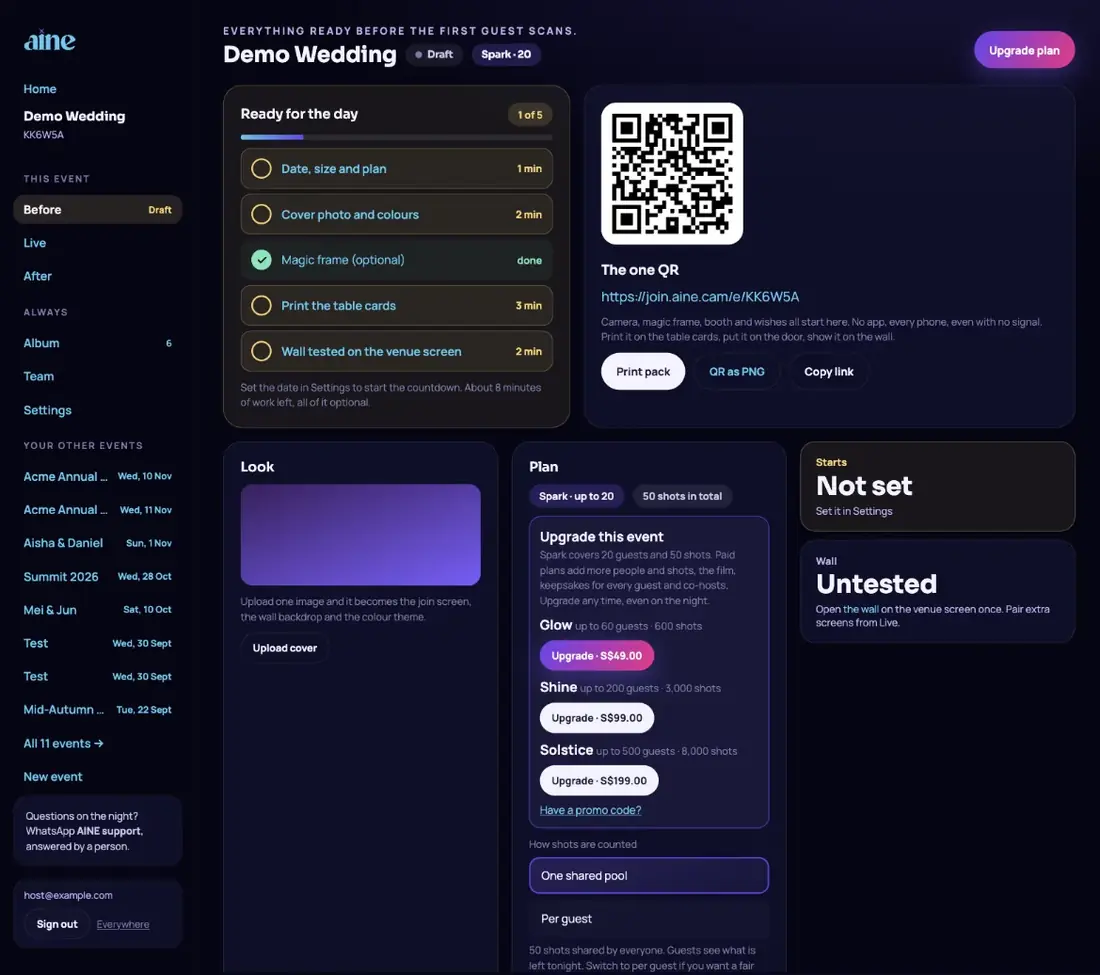
Ready for the day#
A five-item checklist with a time estimate for each. Tap an item to jump to the place that completes it:
- Date, size and plan, in Settings.
- Cover photo and colours, in Settings or the Look card.
- Magic frame: upload your monogram (shown as optional when the magic frame is off).
- Print the table cards, ticked when you open the print pack.
- Wall tested on the venue screen, ticked when you open the wall from the event.
With a date set, the card also shows a live countdown to the day.
The one QR#
This single code opens the camera, the magic frame, the booth and wishes for every guest. Below it:
- Print pack opens printable table cards, a door sign, a checklist and MC scripts. Print pack guide.
- QR as PNG downloads the code for your own designs, invitations or slides.
- Copy link copies the guest link, for example
https://join.aine.cam/e/KK6W5A, for WhatsApp groups or emails.
Look#
Upload one cover image and it becomes the join screen, the wall backdrop and the colour theme of your event. If the magic frame is on you can upload or change your monogram here too. Cover, colours and magic frame.
Plan#
The Plan card shows your plan, guest cap and total shots, and lets you change how shots are counted.
Upgrade this event#
Every bigger plan is listed with its guest cap and shot pool and a button such as Upgrade · S$49.00. You only pay the difference between your current plan and the new one, at today's prices. You can upgrade any time, even on the night, and everything carries over. More on upgrades.
How shots are counted#
- One shared pool: everyone draws from the event's total. Guests see what is left tonight.
- Per guest: set a number of shots each (inside the event's total) so nobody can use up the event on their own. Guests see their own count.
The change saves immediately and reaches guests' phones within about 20 seconds.
Event shots and top-ups#
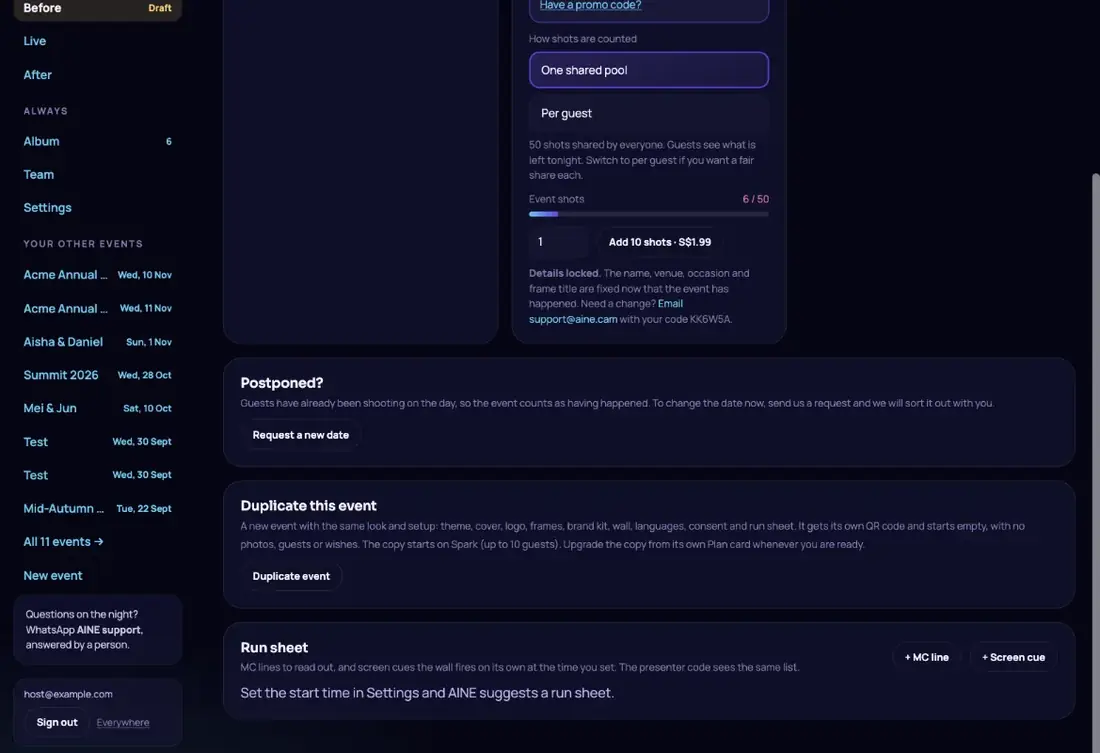
The bar shows shots used out of the total and turns red when you are running low. To add more, enter a quantity and tap the Add … shots button to pay by card. Top-up pack sizes and prices are shown on the button.
The details lock#
Because one event is for one occasion, the name, venue, occasion, brand name and frame title lock automatically. The lock time is 24 hours after the later of your first shot or 12 hours before the start time. For most events that is between 12 and 24 hours after the start. The Plan card tells you the exact lock time once it is known, and then:
Details locked. … Need a change? Email support@aine.cam with your code.
The date is separate: it moves freely until the first shot, then by up to three days either way.
Postponed?#
If your event moves, tap Postpone this event, pick the new date and time and tap Move the event. Your QR code, plan, settings and any test photos carry over. You get one self-service postponement, and only while no shots have been taken within 12 hours of the current start time.
If self-service is not available the button becomes Request a new date. Add an optional note and tap Send request to support. The card shows the request as waiting and later shows the team's answer.
Duplicate this event#
Running something similar again? Duplicate event makes a new event with the same look and setup: theme, cover, logo, frames, brand kit, wall, languages, consent text and run sheet. The copy gets its own QR code and starts empty.
- Not copied: photos, guests, wishes, co-hosts, the photographer link, the booth add-on and any music you uploaded.
- The copy always starts on Spark. Upgrade it from its own Plan card.
- Only the event's creator can duplicate it (not co-hosts). Up to 10 copies per day.
Run sheet#
The run sheet is a timeline of MC lines (what the emcee should say) and screen cues the wall fires by itself at the time you set. Cue types are Scan to join, Moment, Finale and Hold.
- Set a start time and tap Suggest one for a ready-made run sheet: a scan-to-join callout early on, a booth reminder mid-evening and a finale near the end.
- Add your own with + MC line and + Screen cue, then Save run sheet.
- The presenter crew code sees the same list and can fire cues early. Crew codes.
- MC lines are printed as scripts in the print pack.
Still stuck? A person answers every email, usually within one working day.
Email support@aine.cam